Free Shipping – Store Wide
Creative Sound Blaster Play! 4 Hi-Res External USB-C DAC and Sound Adapter Ft. Voicedetect Auto Mic Mute/Unmute, Two-Way Noise Cancellation, Bass Boost/Dynamic Eqs, for Video Calls on Windows PC
Creative Sound Blaster Play! 4 Hi-Res External USB-C DAC and Sound Adapter Ft. Voicedetect Auto Mic Mute/Unmute, Two-Way Noise Cancellation, Bass Boost/Dynamic Eqs, for Video Calls on Windows PC
A$173.10
Availability:
-
This item is currently not available
Product details
- Avoid fumbling over your mic mute button in a video call
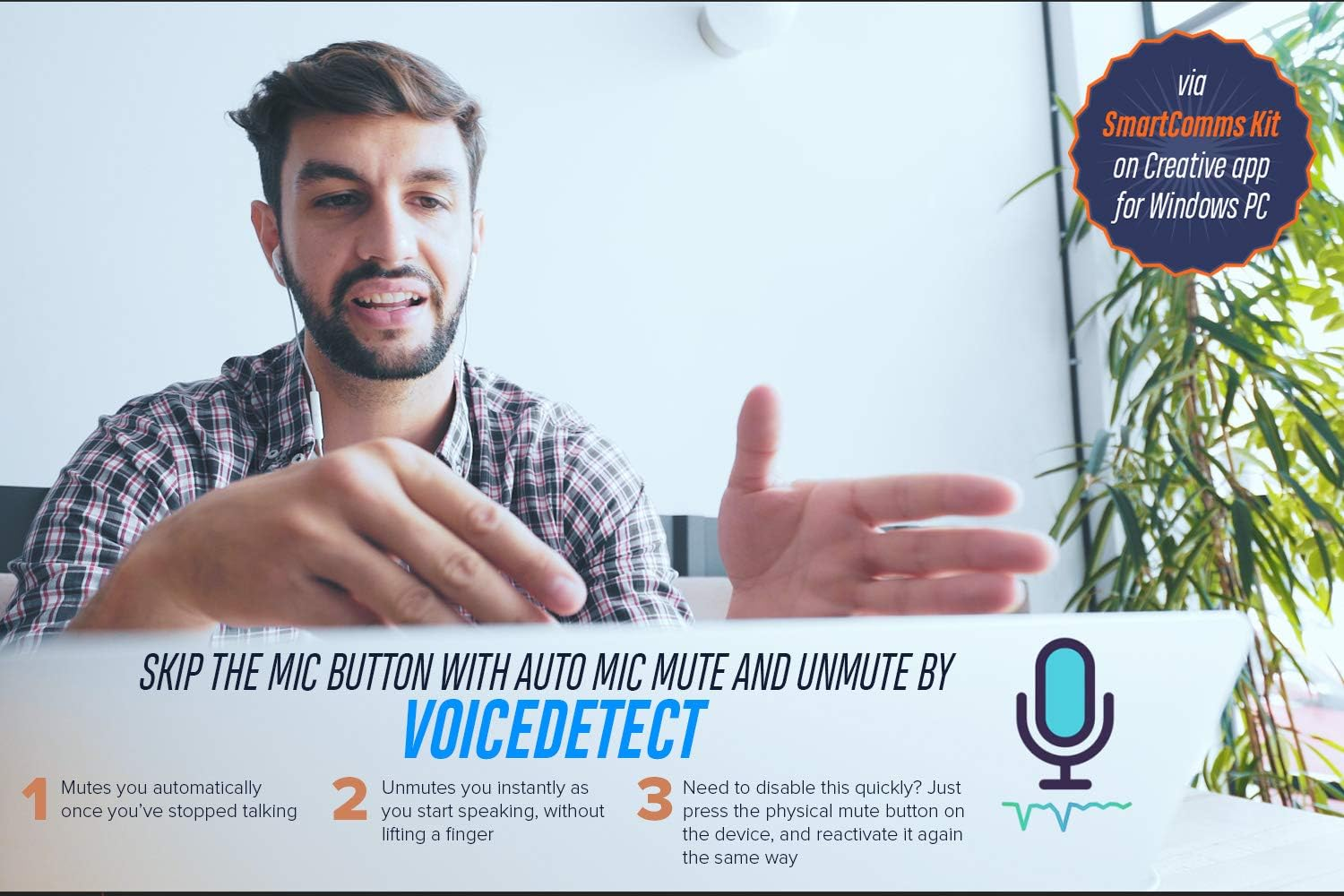
- Mutes you automatically when you stop speaking
- Unmutes you instantly as you start speaking
- Reduce unwanted background noise during an online work call
- Enhance your sound further with the bass boost and dynamic EQS
Product Description
Auto Mute and Two-way Noise Cancellation for Conference Calls
Really, communications shouldn’t be this complicated. Instead of fussing over mute controls or being distracted by unwanted background noises, you should really be focusing on your work and ideas.
A must-have for any work calls, the Sound Blaster PLAY! 4 is designed to solve your video call woes by simplifying the way you communicate. It debuts our newest SmartComms Kit, packed with an array of smart communication software features such as auto mute and two-way noise cancellation to redefine your video call experience.
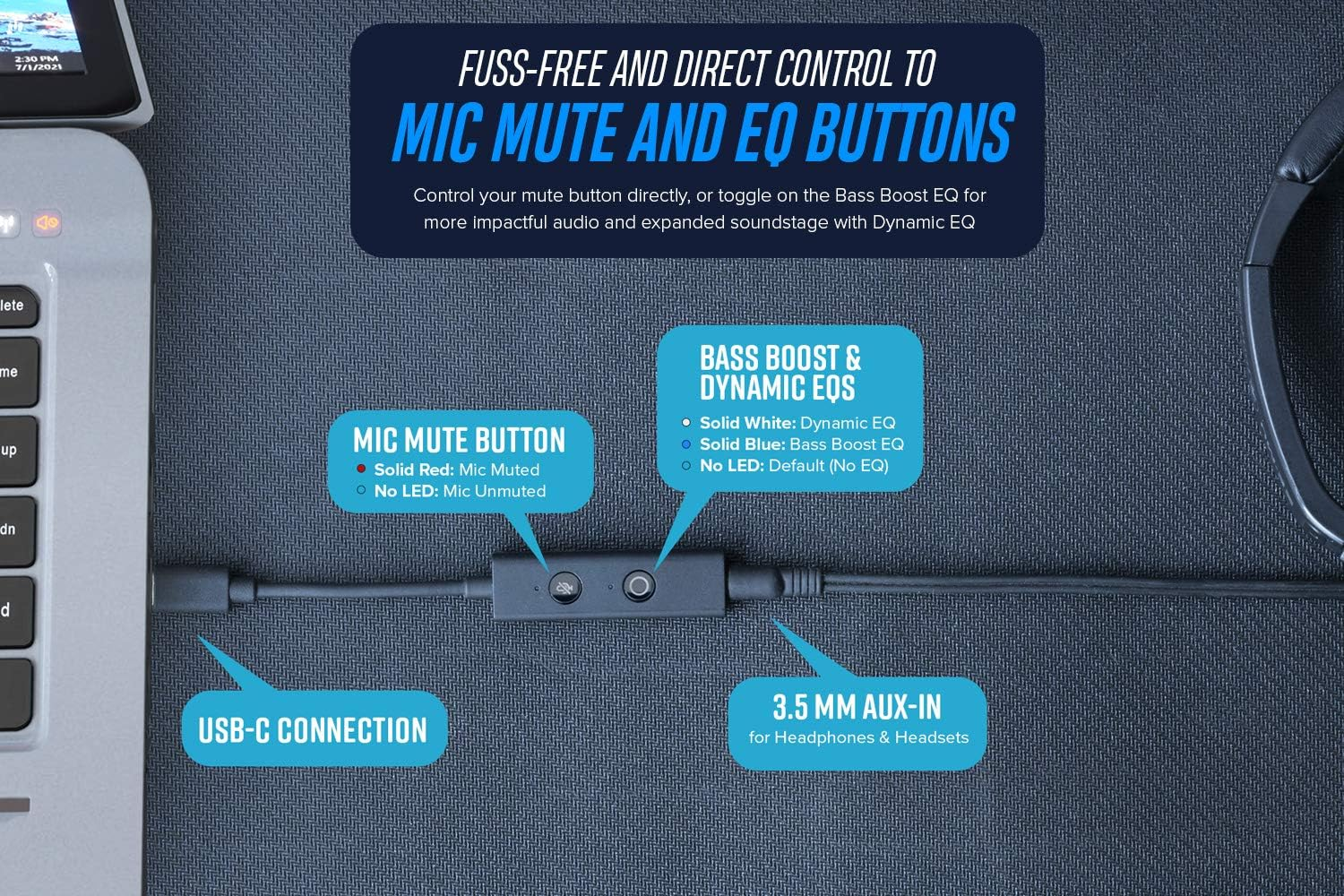
We’ve also made sure to uphold our ethos in delivering convenience and quality with a direct mic mute button, Bass Boost and Dynamic EQs, as well as an instant audio upgrade that surpasses the default audio on any of your devices.
Now, it’s time to change the way you take your calls.
Communicate Smarter with SmartComms Kit
Our SmartComms Kit was developed to fix one common issue for Windows users—to simplify the way we communicate online—via a suite of smart communication features. Why fuss over mute controls or get distracted by unwanted background noises when you should be focusing on what matters instead? Plus, it can be used with any headphones or headsets with microphone, including those that comes bundled* with your mobile phones.
*Do note that the compatibility of PLAY! 4 with the button functions of your headsets are dependent on their respective manufacturer's implementation.
VoiceDetect—Mute and Unmute Yourself Automatically
Our VoiceDetect feature controls your mute status by voice detection as you speak—your microphone gets muted automatically when you stop speaking, and unmutes you instantly as you start speaking. There is absolutely no need to fiddle with any buttons—physical or in-app—so you can on track with your train of thought during the pitch. If you need to talk to someone on the side, disable the VoiceDetect feature temporarily by manually pressing on the physical mic mute button, and reactivate the VoiceDetect feature by pressing on the same button.
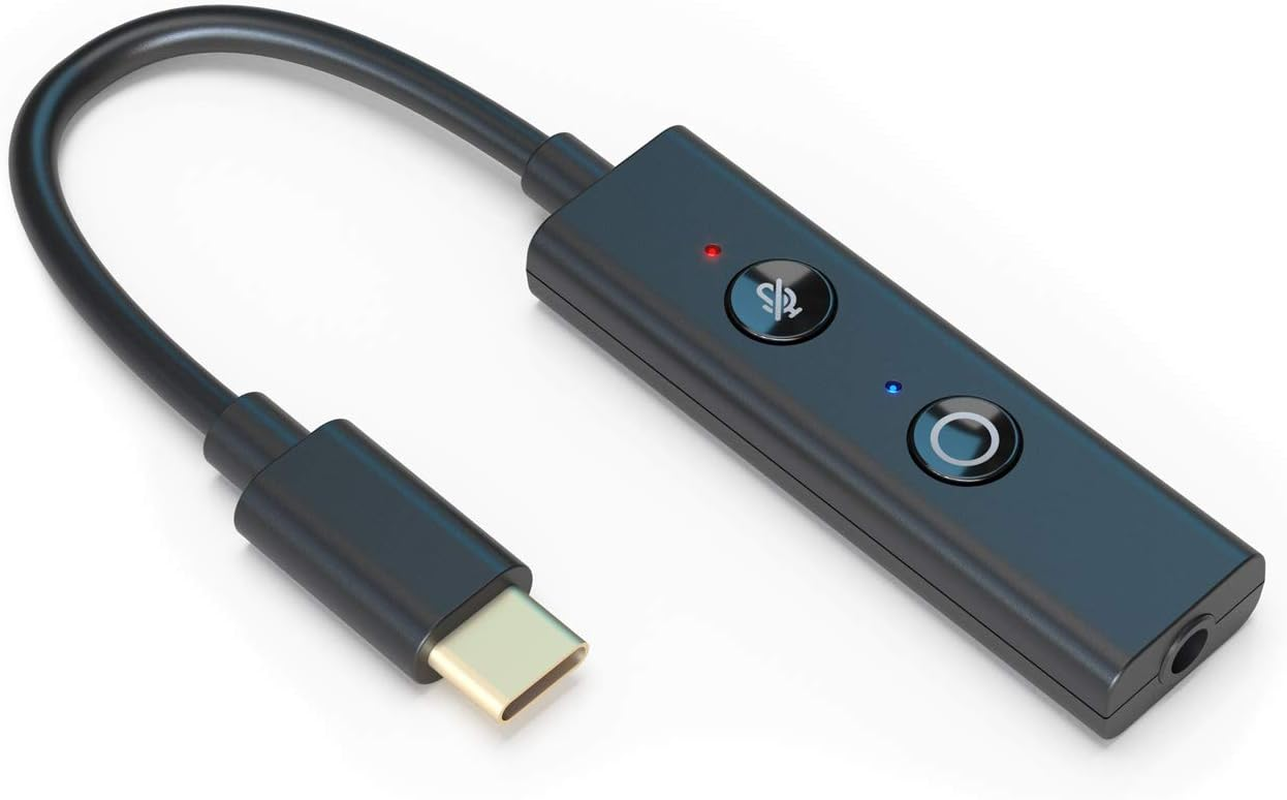
Solid Red LED on Mic Mute Button: Mic Muted + VoiceDetect disabled
LED Off on Mic Mute Button: Mic Unmuted + VoiceDetect enabled
VoiceDetect requires your default microphone button to be unmuted in order for it to work. When unmuted, it will assume control over your microphone’s outgoing audio to automatically unmute when you speak, and mute when you stop.
NoiseClean—Two-way Noise Cancellation
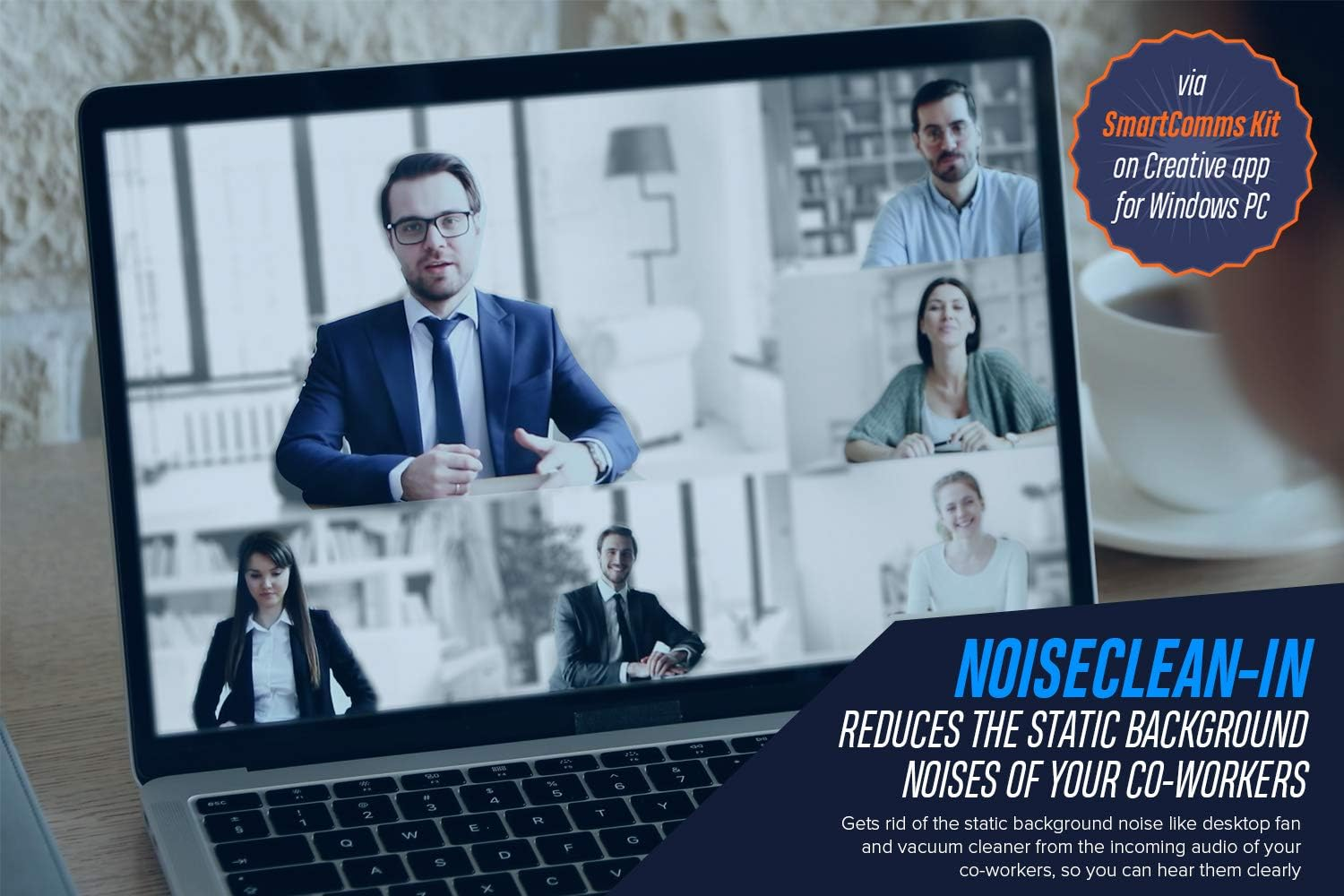
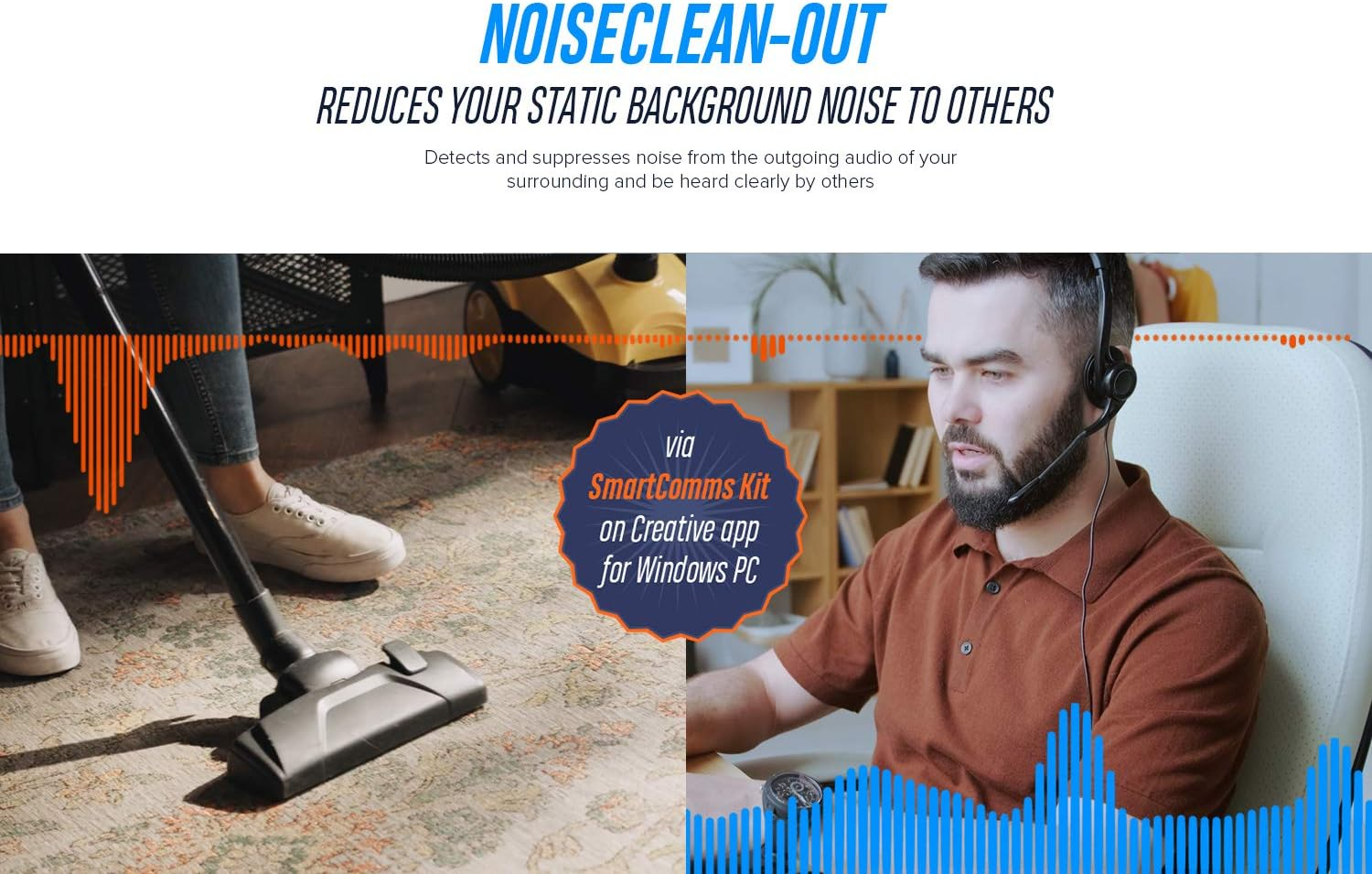
Noise is the enemy of all calls—whether it’s happening in our surrounding or coming from our co-workers—it’s equally disruptive. But what if it is your colleague's background noise that's driving you insane? We have the perfect fix with our NoiseClean features that reduces static background noises from both ends—incoming and outgoing audio—of the conversation.
NoiseClean-in analyzes your incoming audio (imagine a colleague with a noisy background in your video call), detecting and suppressing the unwanted noises, before sending just your colleague’s clean voice to you through your headphones.
NoiseClean-out does the same—but for your own background noise.
It’s Super Easy to Setup
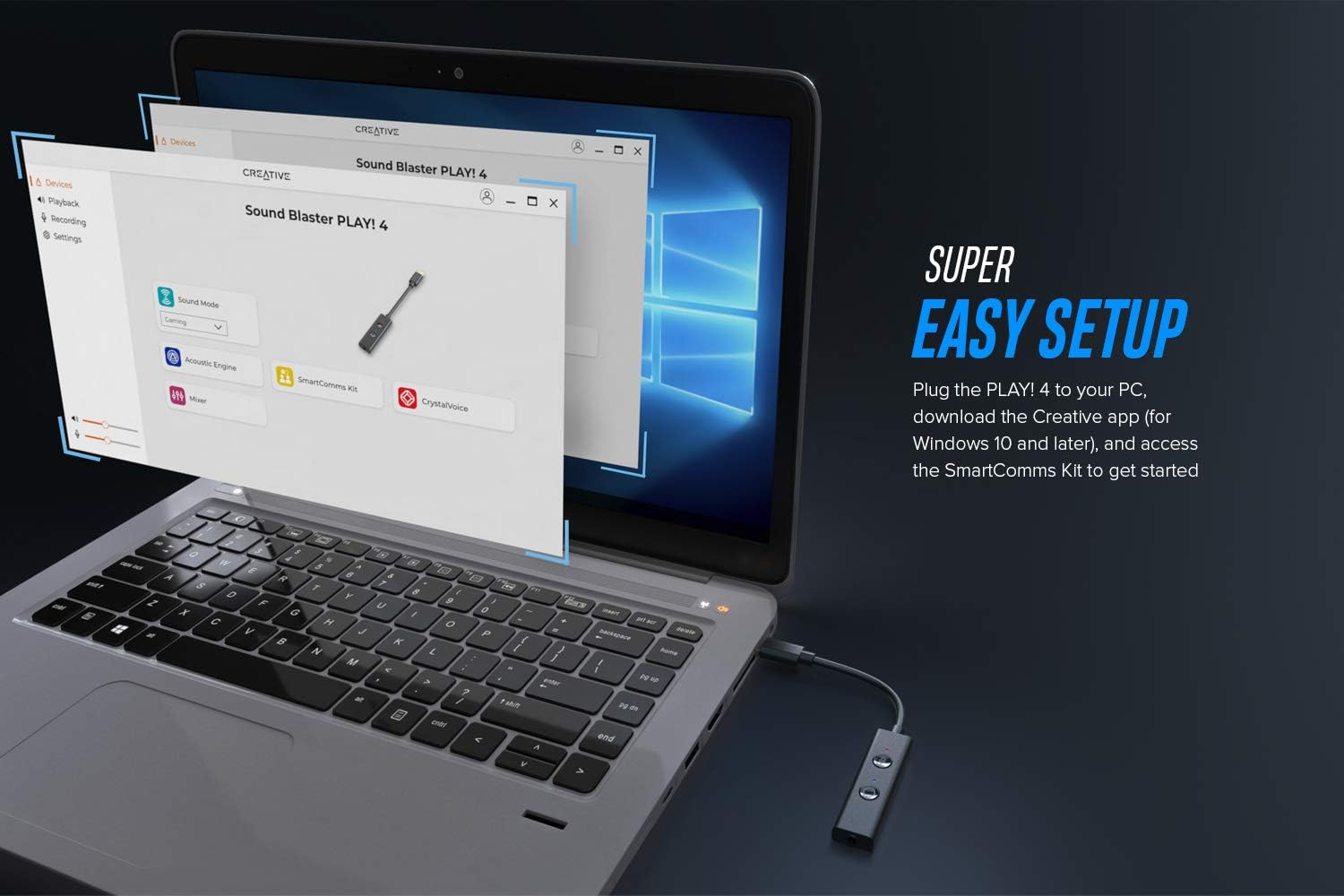
Plug it in, download, and go. The Sound Blaster PLAY! 4 lets you communicate smarter in 3 easy steps:
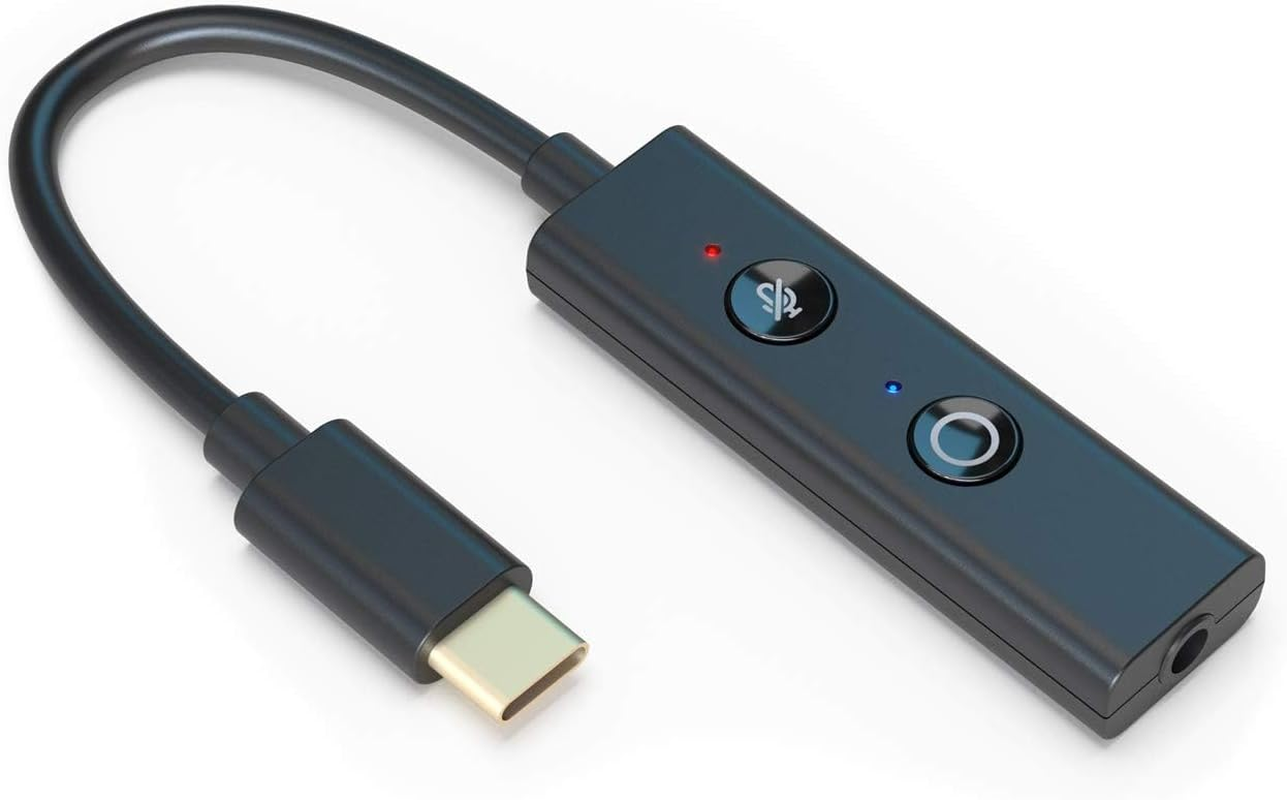
- Plug in the Sound Blaster PLAY! 4 to your Windows PC via the USB-C port. If your computer only has USB-A port, don’t worry, we have also included a USB-C to USB-A converter for your use.
- Download and install the Creative app onto your Windows PC from our Creative Worldwide Support Page for Sound Blaster PLAY! 4.
- Go to the SmartComms Kit module and make sure that it is switched on.
And voila, you’re done! To make further adjustments or control each feature individually, access the Advanced settings inside the SmartComms Kit module.
SmartComms Kit via Creative app for Windows PC
VoiceDetect - Mute and Unmute Yourself Automatically
NoiseClean—Two-way Noise Cancellation
Super Easy Setup
Make Your Audio Go Further
On top of all the software features, Sound Blaster PLAY! 4 also comes with an EQ button with 2 sound modes—Dynamic and Bass Boost—that works great with any type of content—music, movies, and even games!
The Sound Blaster Quality
On the back of everything is what we do best—audio quality. Powered by high-resolution audio with a 192 kHz / 24-bit DAC and delivering clean audio clarity at 110 dB, you will never go back to the default audio on your PC again.
Product Overview of Sound Blaster PLAY! 4
*Voice communications on Nintendo Switch via Sound Blaster PLAY! 4 is title dependent.
^The Sound Blaster PLAY! 4 has been designed to work with fully compliant USB-C Android phones, for example, the Google Pixel series. Some phones may display partial compatibility with the Sound Blaster PLAY! 4 because of the difference in their USB-C implementation from the Android standard, and may exhibit mic compatibility issues.
Frequently Asked Questions
1. The Sound Blaster PLAY! 4 is unable to be powered up by my mobile device.
- When the battery level of your mobile device is too low, it may not be able to provide sufficient power to the Sound Blaster PLAY! 4. Do make sure that your mobile device is adequately charged before using it with the Sound Blaster PLAY! 4.
2. Is the SmartComms Kit and Creative app available for macOS, mobile devices, and gaming consoles? My Windows PC is unable detect the Sound Blaster PLAY! 4, why is that so?
- The SmartComms Kit and Creative app are available for Windows platform only. Do make sure that your Windows 10 version is updated (Ver 1703 and above).
3. Why does the Sound Blaster PLAY! 4 sound louder on PC / Mac compared to Android devices?
- PC has the capability to control both the media playback volume of the media player and USB audio volume of Sound Blaster PLAY! 4. Under most cases, the default media playback volume is always set to maximum on the media player software. On Android phones, you are only allowed to control the media playback volume and not the USB audio volume. Furthermore, the default media player volume is normally set to 50% or lower on most phones, thus it will sound softer compared to PC / Mac. For more power output, switch the Sound Blaster PLAY! 4 to USB Mode 1, as detailed in following FAQs.
4. How do I know which USB Mode is my Sound Blaster PLAY! 4 in? What are the differences between USB Mode 1 and USB Mode 2?
- When powering on, the LED indicator on the EQ button will flash either blue or white to indicate the USB Mode that it's in:
- [USB Mode 1] The LED indicator will flash Blue 5 times
- [USB Mode 2] The LED indicator will flash White 5 times (Do note that the Sound Blaster PLAY! 4 is set to USB Mode 2 by default)
5. What are the recommended modes?
- USB Mode 1 is best suited for gaming consoles such as PS4, PS5, and mobile devices, and supports playback resolution of up to 24-bit / 96 kHz.
- USB Mode 2 is recommended for Windows and Mac systems and supports playback resolution of up to 24-bit / 192 kHz.
- We also recommend using USB Mode 2 if your intended primary platform for the Sound Blaster PLAY! 4 is PC or Mac, and using USB Mode 1 if your intended primary platform is on gaming consoles and mobile devices.
6. Will the Sound Blaster PLAY! 4 remember the USB Mode after I've set it? How do I switch between USB Mode 1 and 2?
- Sound Blaster PLAY! 4 will remember the last USB Mode that it has been set to, i.e. if the device is set to USB Mode 2, it will remain in USB Mode 2. While connected and powered on by a device, switch between USB Mode 1 and 2 via the following steps:
- Press and hold the EQ button for approximately 2 seconds.
- When the LED indicator on the EQ button flashes Blue 5 times, the Sound Blaster PLAY! 4 is set to USB Mode 1.
- To set the device into USB Mode 2, press and hold the EQ button for approximately 2 seconds.
- When the LED indicator on the EQ button flashes White 5 times, the Sound Blaster PLAY! 4 is set to USB Mode 2
7. My audio sounds distorted when I play videos and music on my laptop.
- Ensure that NoiseClean is only switched on during online calls. NoiseClean may interfere with normal media playback (e.g., music and movies) and we recommend for the feature to be switched off for the best audio experience.
8. Android devices can only record audio from its built-in microphone during video recording, and this limitation applies to all third-party USB audio products.
- I am unable to record audio from Sound Blaster PLAY! 4 in video recording mode on Android devices.
- Hardware Platform: USB
- Part Number: 70SB186000000
- Operating System: windows 10
- Number of items: 1
- Mounting Hardware: 1 x Creative Labs Sound Blaster Play
- Speaker Surround Sound Channel Configuration: 5 1
- Batteries Required: No
- Brand: CREATIVE
- Signal-to-noise ratio (dB): 110 dB
- Compatible Devices: Gaming Console, Headphone, Personal Computer
- Colour Name: Multicolor
- Item Weight: 45 g
- Item Model Number: 70SB186000000
- Model: 70SB186000000
- Model Name: Sound Blaster
- Audio output mode: Stereo
- Batteries Included: No
- Hardware Interface: USB
- Product dimensions: 13.8 x 1.6 x 0.8 cm; 45 Grams
- Manufacturer: Creative Technology Ltd.
A$173.10
Shipping to Australia
Delivery time varies by location
Return & Refund Policy
Check our return & refund policy
Security & Privacy
Safe payments: We do not share your personal
details
Availability:
-
This item is currently not available
Sign
in
or create an eMega account
Shop smarter — get exclusive deals & order
tracking